
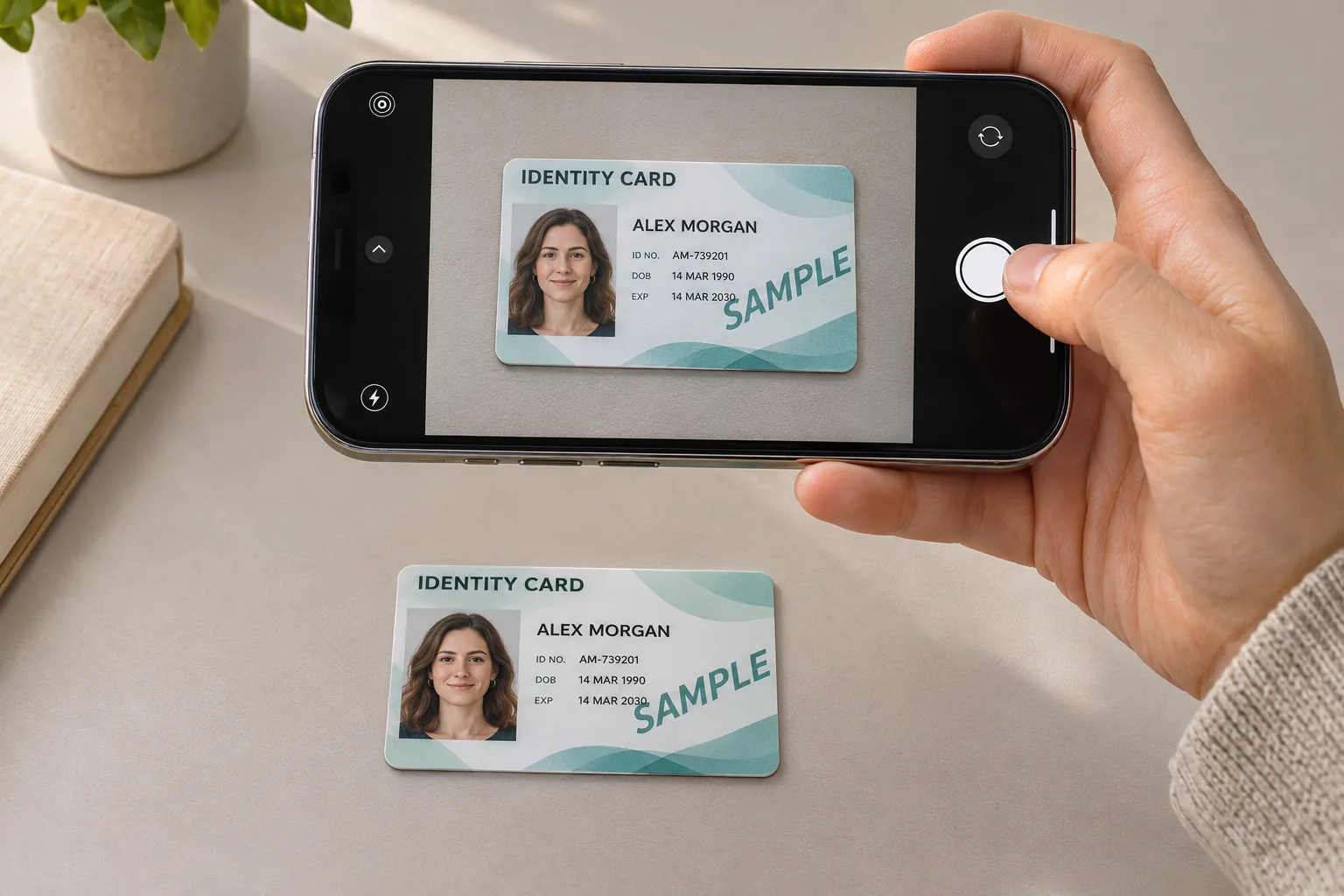
Prepare the card and confirm the requested layout.
Place the ID on a plain surface in even light. Keep the original available and check whether the recipient needs one side or both. Decide whether separate pages are accepted or both sides must appear on a single sheet. This choice affects how you prepare the final PDF.
Start a scan in Files.
On iPhone, open Files, use the More menu and choose Scan Documents. Capture the card, adjust the corners and keep the scan. Add the other side when needed, finish and choose a save location. Menu wording can vary by iOS version.
Open the saved PDF and inspect each page.
Find the file in the folder you chose. Open it and check the portrait, smallest required text and every edge. Check the page count and orientation. If a reflection hides information or cropping cuts off a corner, repeat that scan while you still have the card.
Prepare a combined page if the recipient requests it.
Two captures can produce separate PDF pages. For a front-and-back layout on one sheet, start with two cropped JPG, PNG or WebP images and use the IDPouch PDF tool. It accepts images rather than existing PDFs. Select A4 or Letter and review the exported page before attaching it.
Keep a usable copy for your next document task.
Give the checked file a name you can recognize and retain the unedited source. If you regularly scan and organize documents, IDPouch for iPhone offers scanning, edge adjustment and keeping both sides together. Review its available features in the app. Browser results are downloaded separately.