
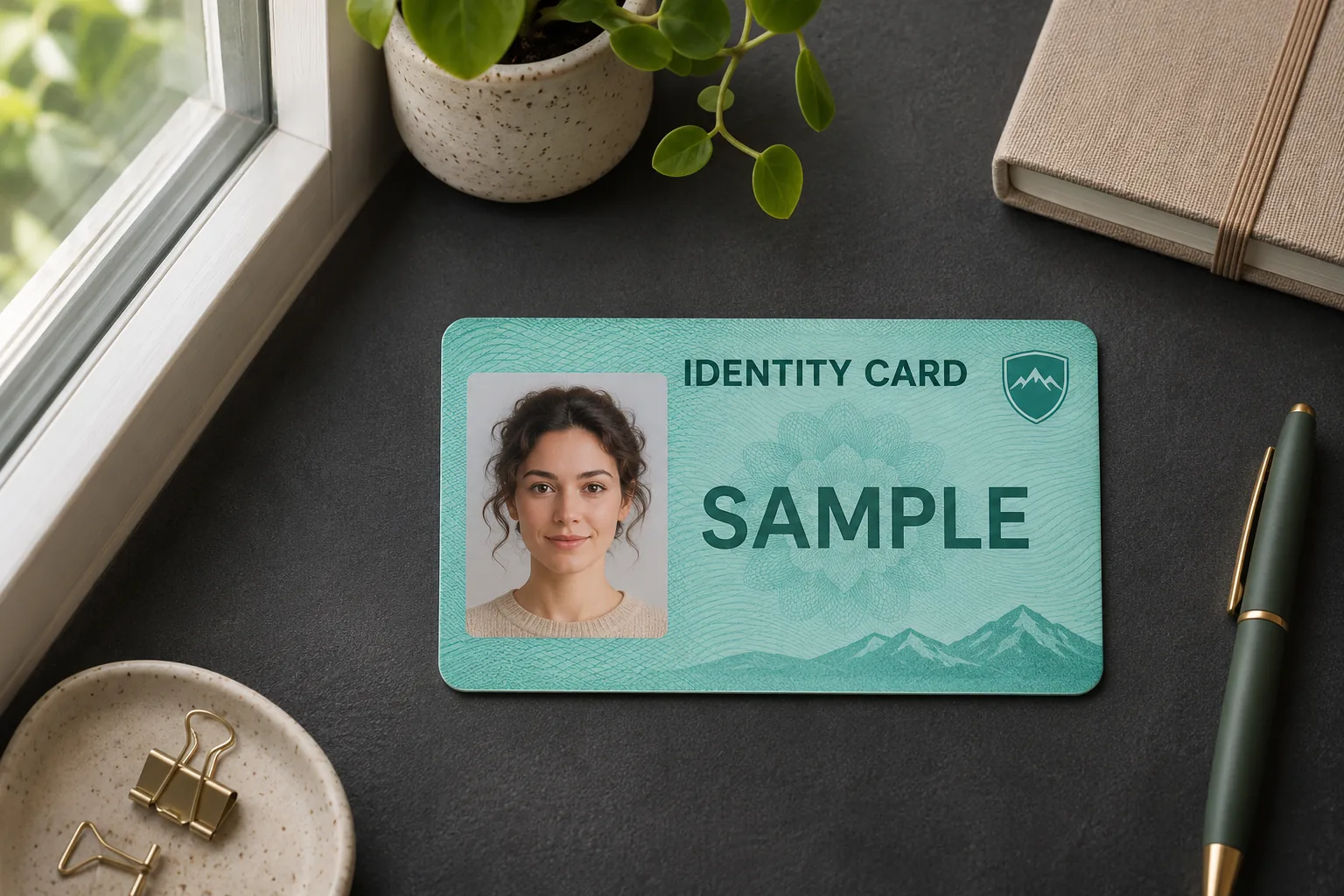
Fix reflections before creating the copy.
A bright reflection can hide text even when an ID photo looks sharp. Check the portrait and the smallest required text before adding a watermark or creating a PDF. If glare covers information, take another photo. A watermark or a larger export cannot restore detail that the camera did not capture.
Move the light before tilting the card.
Place the card on a flat, plain surface in even light. Start with the flash off. If you see a bright patch, move away from a direct lamp or change your position relative to a window. Avoid casting your phone's shadow across the card. Keep the camera approximately parallel to the card so that one edge does not appear much shorter than the opposite edge.
Keep all four corners in the frame.
Clean the camera lens, hold the phone steady and leave a small border around the card. Check focus before taking the picture. Move closer only while the camera can still focus; digital zoom is not a substitute for a clear original. Photograph the other side separately if the recipient asks for it, using the same lighting and orientation.
Review the actual photo at a readable zoom.
Open the saved image, then inspect the name, document number, portrait and any other details required for this request. Look for glare, motion blur and clipped edges. Do not use generative editing to reconstruct characters or replace document details. When a required area is unreadable, retaking the photo is the useful next step.
Create the format the recipient accepts.
Crop empty background in your image editor while preserving the full document. The browser watermark tool works with an existing image; it does not automatically correct perspective or remove reflections. If marked copies are accepted, add a specific recipient and purpose, then reopen the downloaded result to check readability.
Need both sides in a PDF? Check the page layout.
Use the two prepared images in the ID card to PDF tool when a combined page is requested. If the receiving form has separate front and back fields, submit separate files instead. Keep the original images so you can prepare another accepted layout without photographing everything again.