Confirm that email is the requested channel.
Check the recipient address against contact details you already trust. Ask which document sides, file format and size limit are needed. If the organization asks you to use its upload portal, follow that route. Prepare only the copy needed for this specific request.
Save the final copy before composing the email.
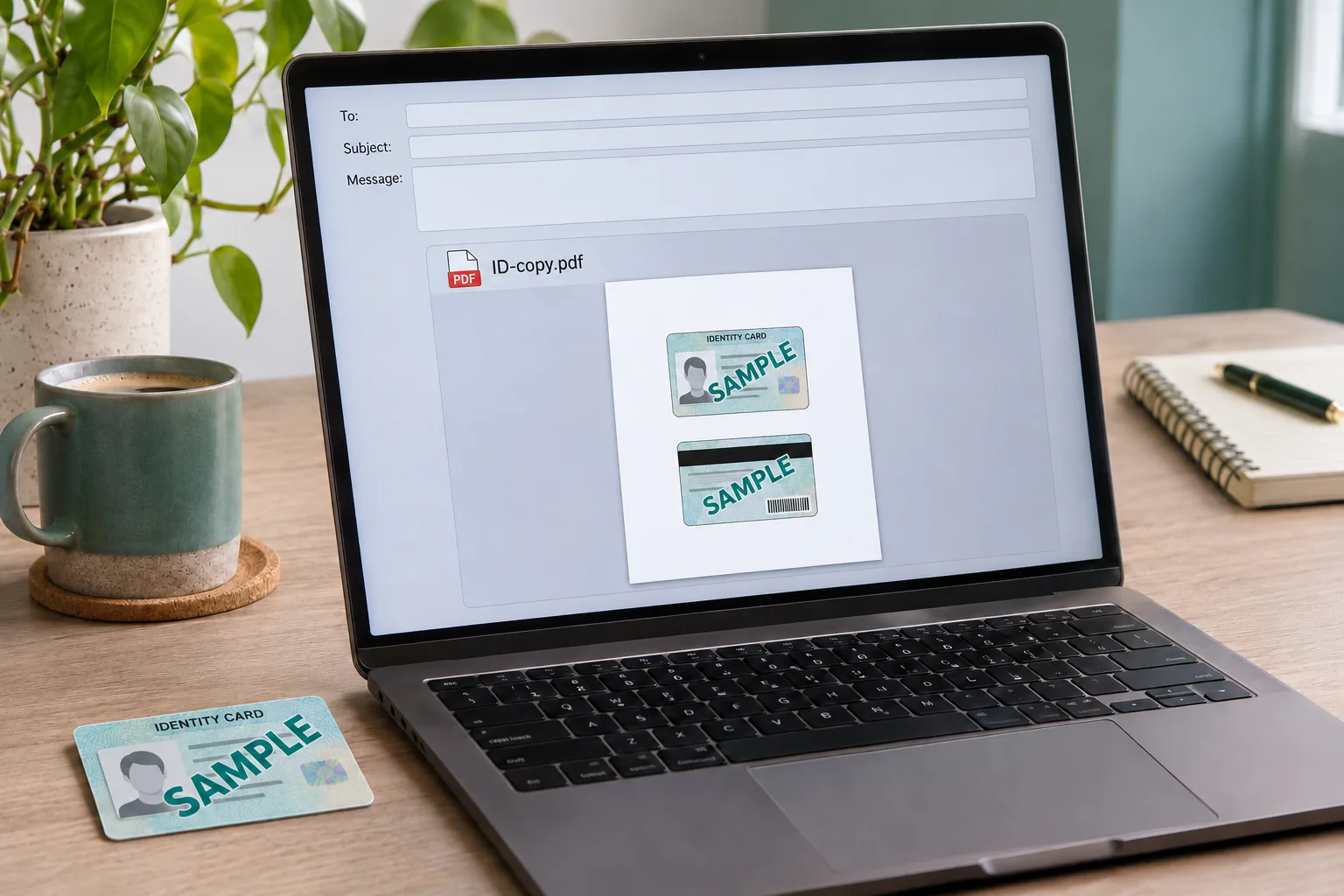
Use a readable JPG for an accepted image attachment, or a PDF for the requested page layout. If the recipient accepts a purpose watermark, add its name and the reason for the copy. Download the result and reopen it. Keep this finished file separate from the unedited original.
Attach the saved file from its folder.
In iPhone Mail, open the attachment controls in your draft and choose Attach File to select a document from Files. For other email apps, use their file attachment control. Select the checked copy from its saved folder. Apple notes that attachments may appear within the message or as a file icon.
Check the attachment before reducing its size.
Open the attachment in the draft when your mail app allows it. Check both sides, orientation, watermark wording and small text. If the file exceeds the recipient’s limit, compress a separate image copy and compare readability. The image compressor accepts JPG, PNG and WebP. Existing PDFs need a suitable PDF workflow.
Review the address and attachment together.
Check the To and Cc fields, attachment name and file count before sending. Keep the message focused on the agreed request. After sending, check your mail app for a delivery error and keep track of the version supplied. A sent message alone does not confirm that the recipient accepted the document.