
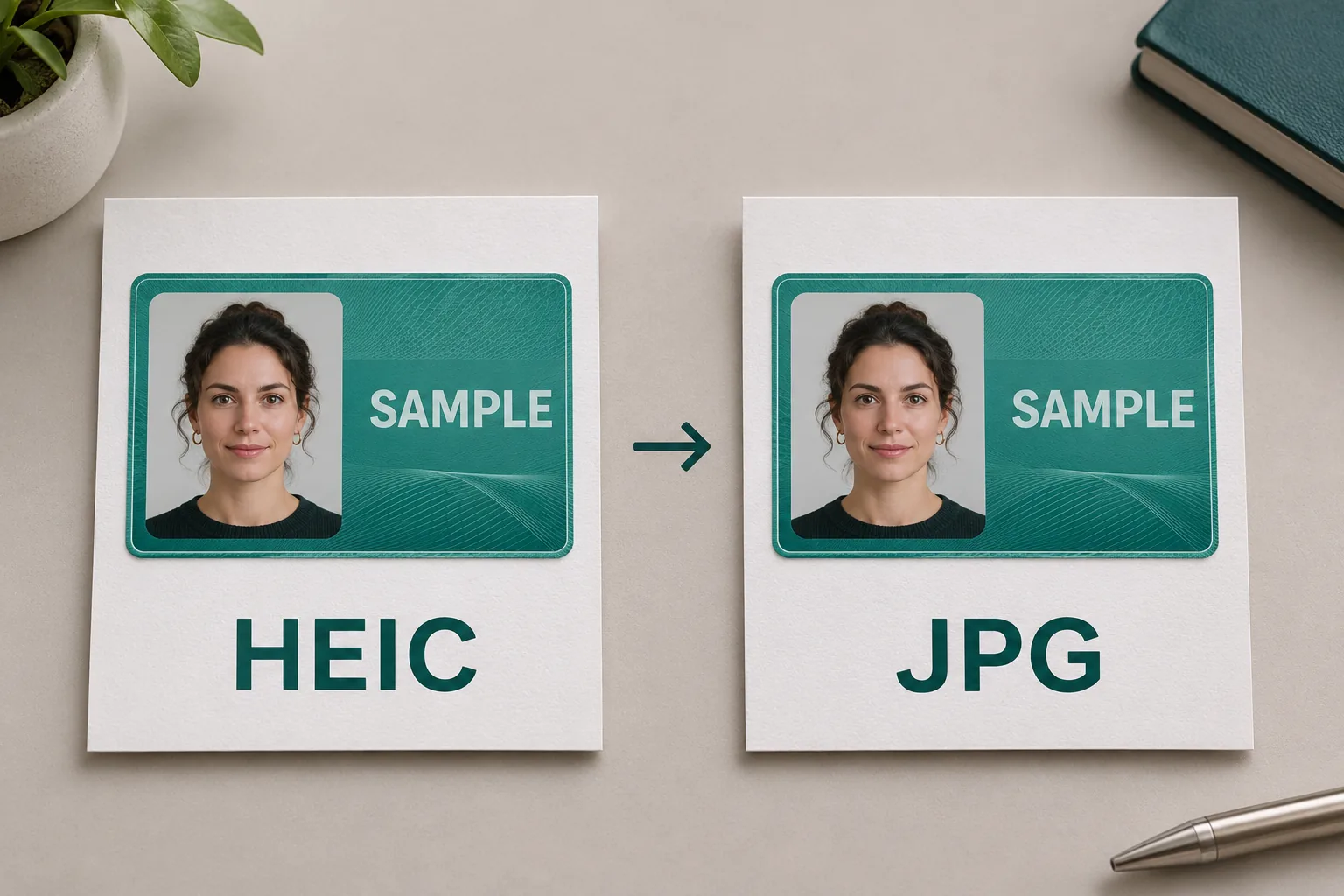
Check the accepted format and the selected file.
An iPhone photo may use HEIF and have a .heic extension. Check the receiving form for accepted formats and the maximum file size, then inspect the exact photo you selected. If it requires JPG, create a JPEG copy and keep the original for later edits. Renaming a file leaves its encoding unchanged.
Export an existing photo as JPEG.
Use an image app that can open the HEIC file and export JPEG. On a Mac, Apple documents opening the image in Preview or Photos, choosing File, then Export, and selecting JPEG. Save a separate copy. Open that new file and check its format in the file information before selecting it in the upload form.
Choose JPEG for the next camera photo.
On supported iPhones, Settings → Camera → Formats → Most Compatible makes new camera photos use JPEG. Existing photos retain their format. If you take a replacement ID photo, keep all corners visible, use even light and check that the smallest required text is in focus.
Use the converted image in the document tool.
Choose the JPEG copy in the ID watermark tool. IDPouch also accepts PNG and WebP, within its 20 MB and 40-megapixel input limits. HEIC opening depends on browser support. Add a recipient and purpose if the receiving organization accepts a marked copy, then download the result in its requested format.
Inspect the final file before uploading.
Reopen the downloaded copy and inspect the portrait, small text and complete edges. Check its actual size against the form's limit. When both sides must share a PDF page, prepare two clear images and use the PDF tool. For separate upload fields, keep one file for each side. Attach the checked version from the folder where you saved it.