One page is different from one file.
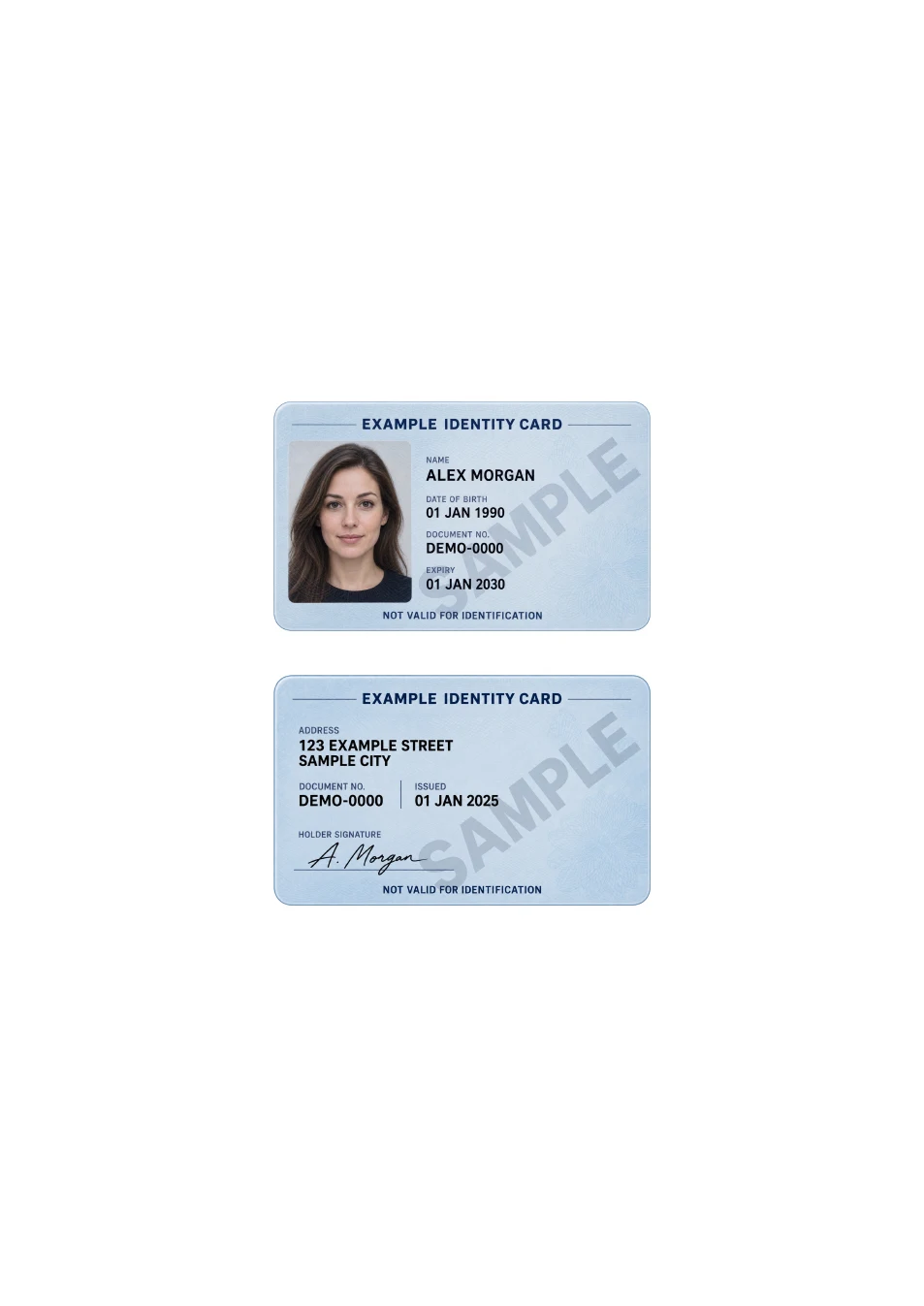
To put an ID card front and back on one page, arrange both photos on the same PDF sheet rather than merely merging two pages into one file. First check that the recipient accepts this layout. If the form has separate front and back fields, keep the sides separate instead.
Prepare two clear images before opening the tool.
Photograph each side flat, with even light and all required corners visible. Crop away the table or background in your image editor, then check for glare. The browser tool accepts JPG, PNG and WebP, up to 20 MB and 40 megapixels per image; it does not automatically crop or correct perspective.
Add each side to its own slot.
Open the ID card to PDF tool and select the front image, then the back. Choose top-and-bottom or side-by-side placement. The first slot appears at the top or left. Use Rotate for sideways photos and Swap if the sides are reversed; changing orientation does not crop the source image.
Choose paper size and card size separately.
Select A4 or US Letter according to the recipient. ID-1 card mode fits each image inside an 85.60 × 53.98 mm box, following its orientation. Fit page enlarges the images instead. Passport pages and differently shaped documents are not ID-1 cards; keep their proportions and check whether the resulting size is suitable.
Check the saved PDF outside the editor.
Download the file and confirm it has one page containing both sides, in the right order and upright. Zoom in to inspect required details, then check the file size against the upload limit. The website processes these images in your browser, but does not keep a backup or transfer the result automatically to the app.