
Confirm who needs the copy and why.
A request for identity documents can arrive during recruitment or onboarding. Before providing a file, confirm the organization, the stage of the process, and the intended purpose through a known contact or official portal.
This checklist helps with the file itself. It does not determine which documents an employer can require, whether a copy is sufficient for a particular check, or the rules in your country.
Get the file requirements in writing.
Ask which document is needed and which parts must be visible. Check whether you should supply images, a PDF, separate pages, or a combined page. A file that looks tidy is not useful if the recipient’s system cannot accept it.
- Confirm front, back, or both.
- Check the accepted file type and size.
- Ask whether purpose watermarks are accepted.
- Use the employer’s verified submission channel.
Do not assume that the same document list applies to every employer, role, or country.
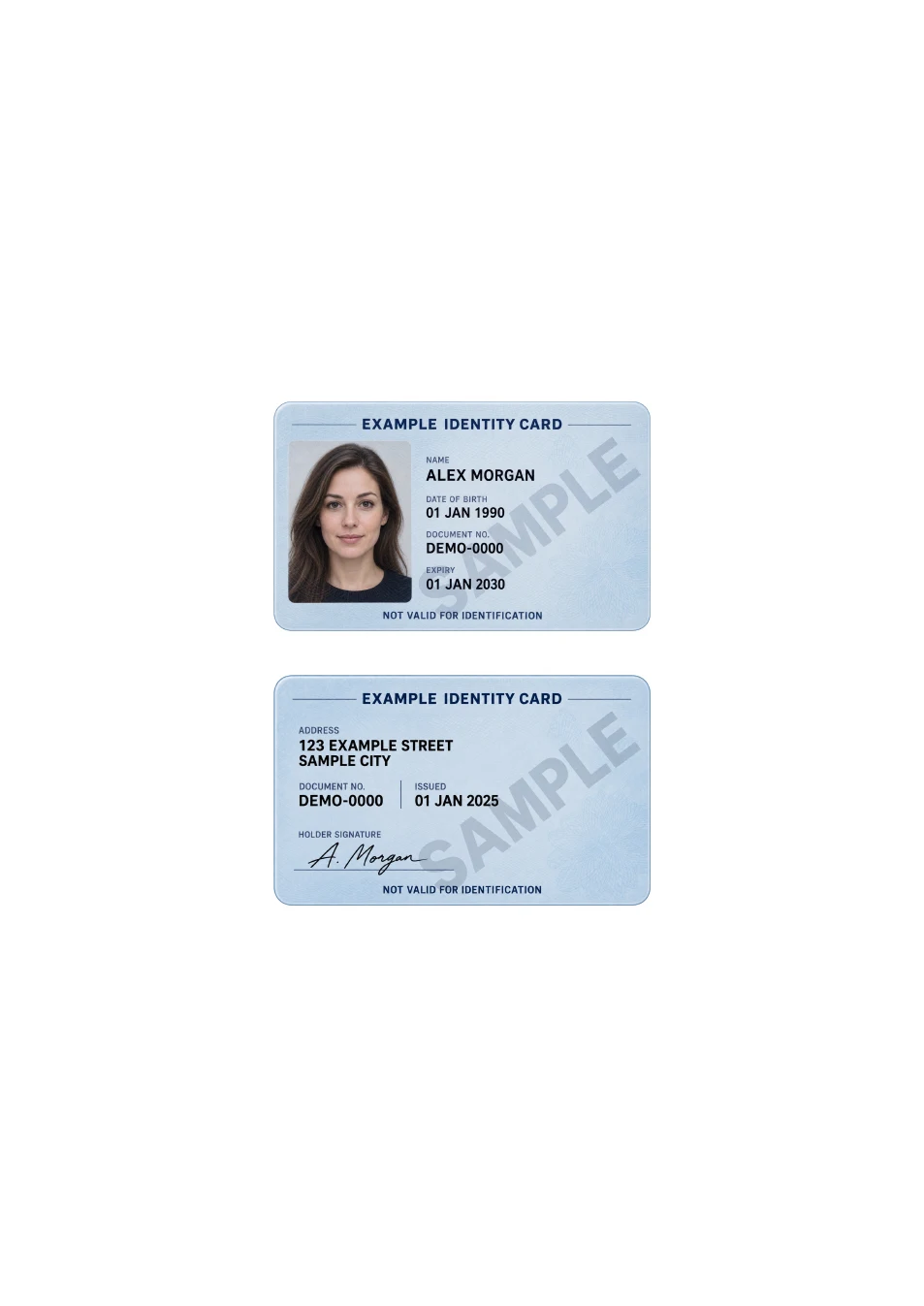
Make a clean copy in the required layout.
Use a clear photo or scan, with no glare over the text and no cropped-off information. Check the image at a readable size. If you are photographing both sides, keep their orientation consistent.
When a one-page PDF is requested, the front-and-back PDF tool can arrange both images vertically or side by side. It preserves their proportions and lets you select A4 or US Letter.
This tool uses your existing images; it does not automatically scan, crop, or verify a document.
Add an accepted purpose mark.
If the recipient accepts watermarked copies, make the message relevant to this handover:
For [Employer] — Employment onboarding only — [Date]
Replace every bracketed field. The date is context, not an expiry rule. Adjust opacity and placement so required information remains readable.
Use the watermark tool with an employment preset, or browse the full text template library. A watermark is not a guarantee against reuse and may not be accepted in every process.
Check the downloaded file, then hand it over.
Open the finished file and check the wording, page count, orientation and required details. Make sure the file you upload or attach is the intended version, rather than the untouched original or an earlier draft.
For repeated scanning and organizing, IDPouch for iPhone provides a separate app workflow. Website output does not automatically transfer into the app.
Make a one-page ID PDF →